
For the best motion experience, we recommend using the Reactor Motion System with SimHub. In our opinion, SimHub provides the best features and overall user experience.
If you prefer to use flyPT Mover, follow this guide to set up your Reactor Motion System with flyPT Mover 3.5.*.
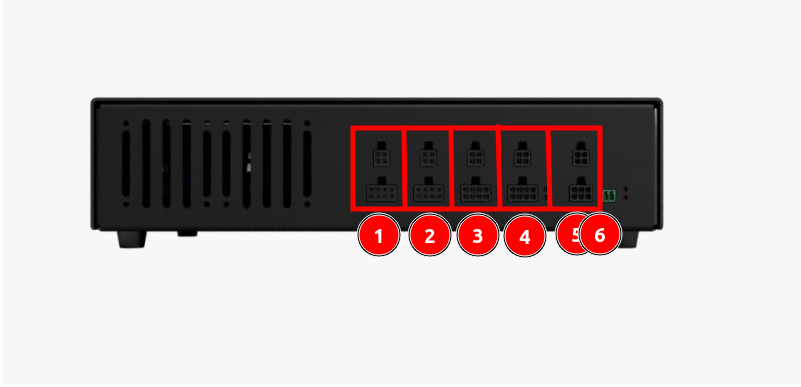
Important: Before enabling motion, make sure your actuators are connected to the correct controller outputs. The pre-configured flyPT profile uses the following axis assignment:
If the actuators are connected differently, the platform will move unsafely
Download the preconfigured FlyPT Setup file from: here
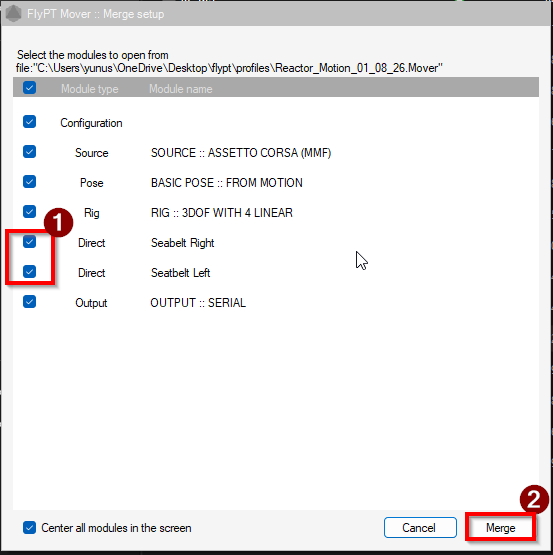
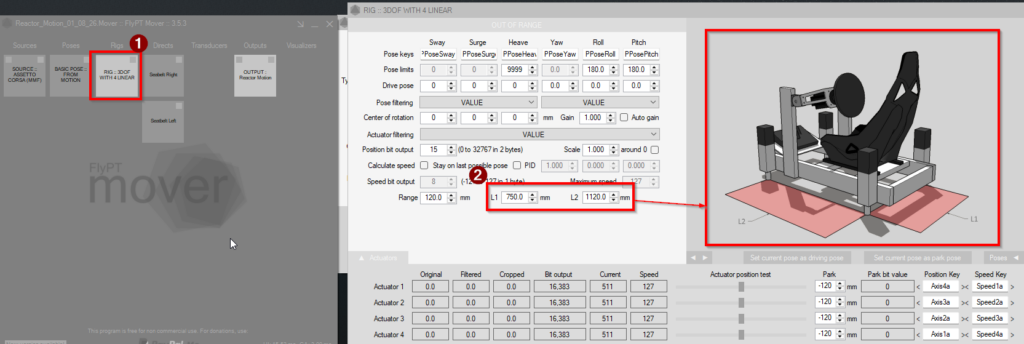
Reactor_Motion_*.Mover file into the flyPT window (1).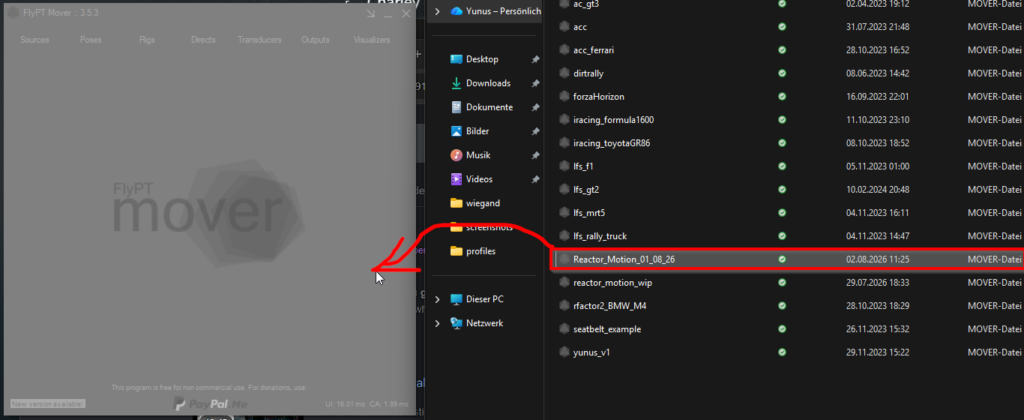
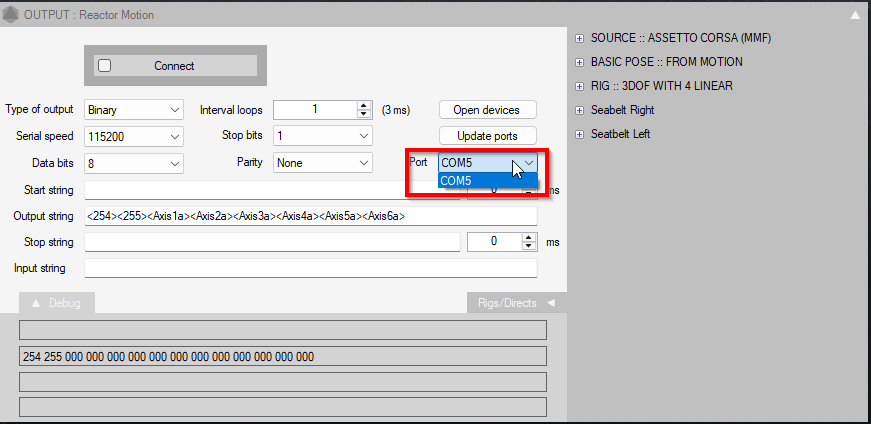
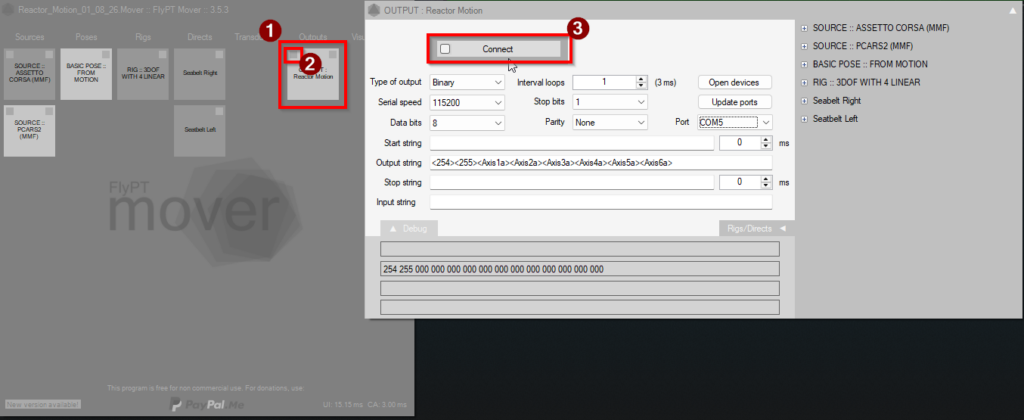
To let FlyPT know on which USB the Reactor Motion System is connected to, we need to select the correct comport
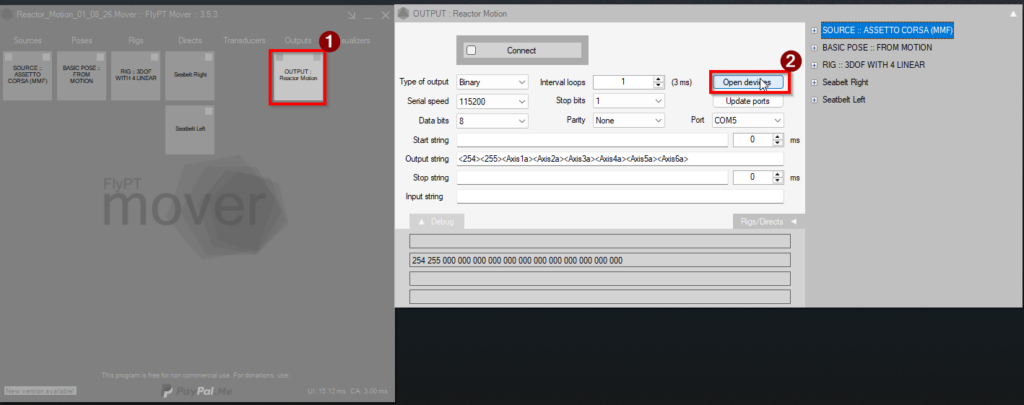
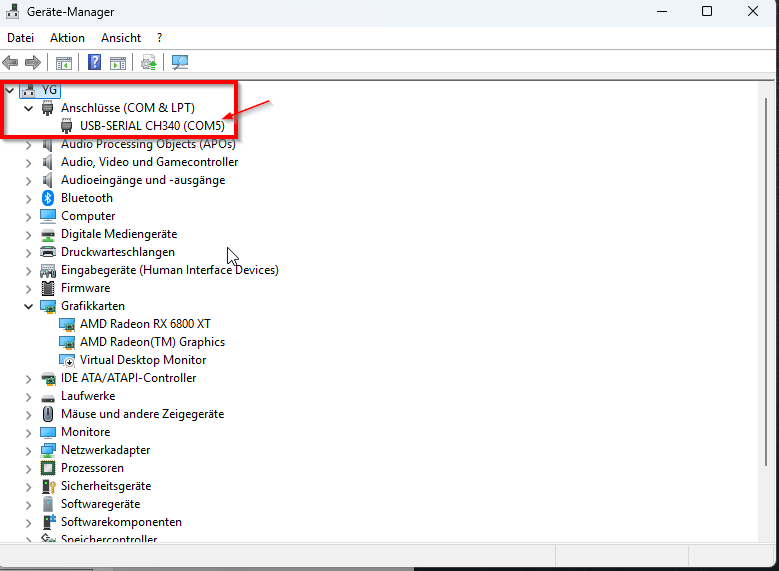
Select the previously identified Serial Port
For adding more games to FlyPT:
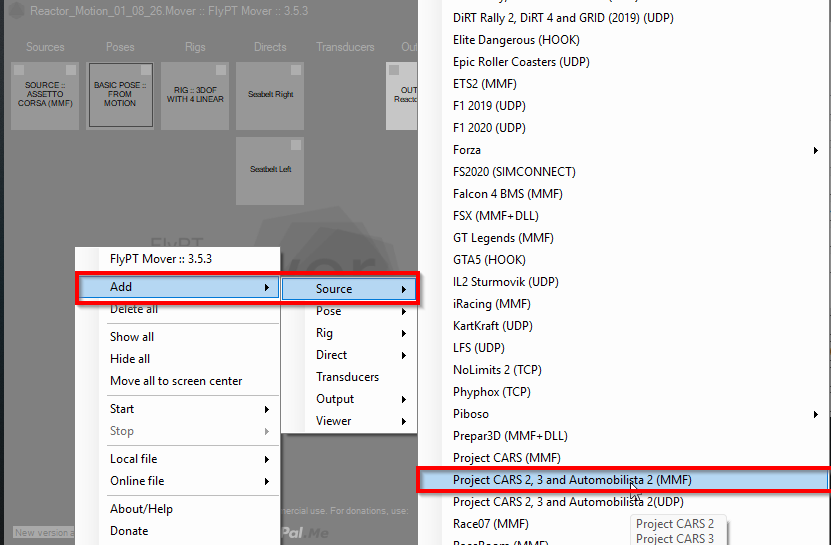
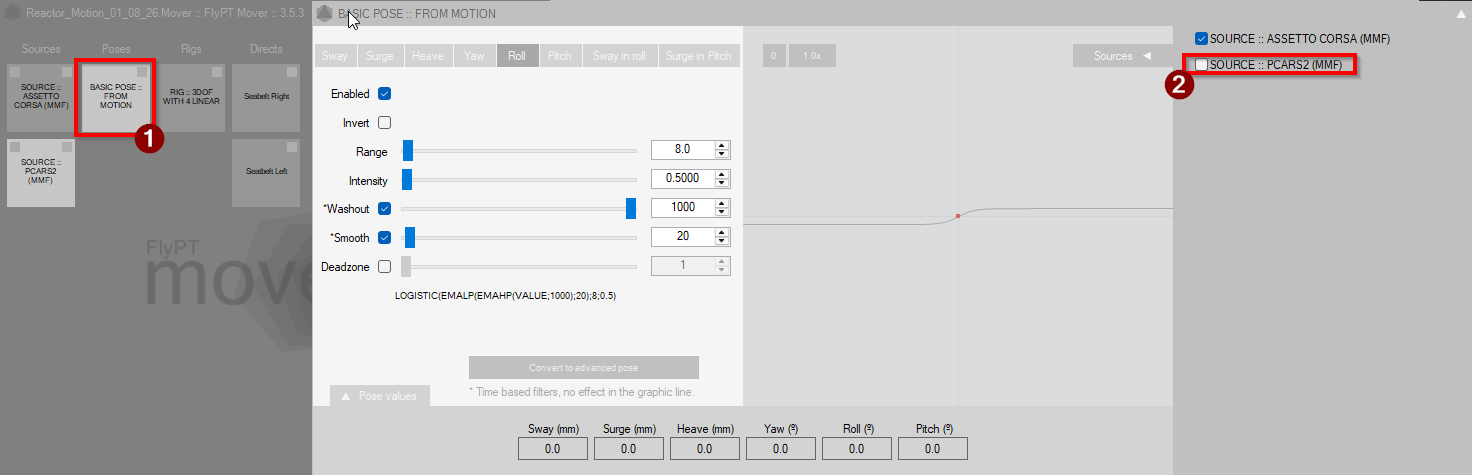
After adding the game, you need to assign it to a pose.
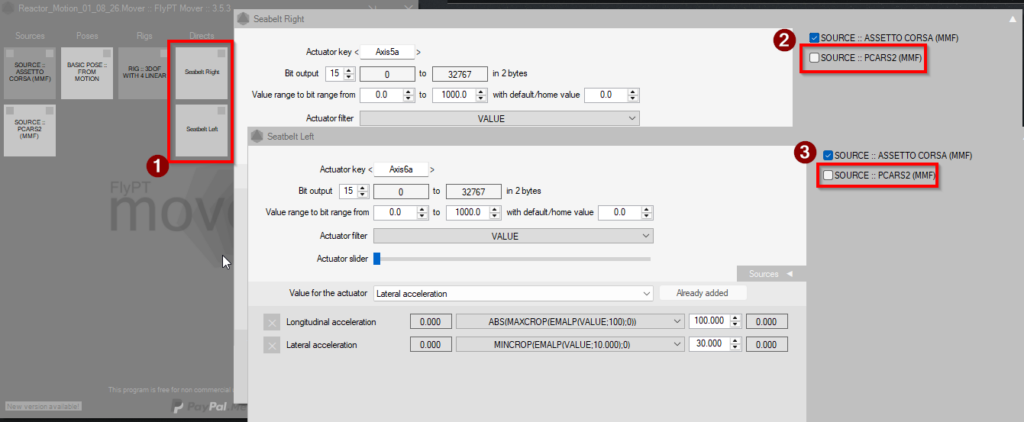
If a seatbelt is connected, you also need to connect the Game to the seatbelt
For activate the Motion. Enable the Reactor Motion Output
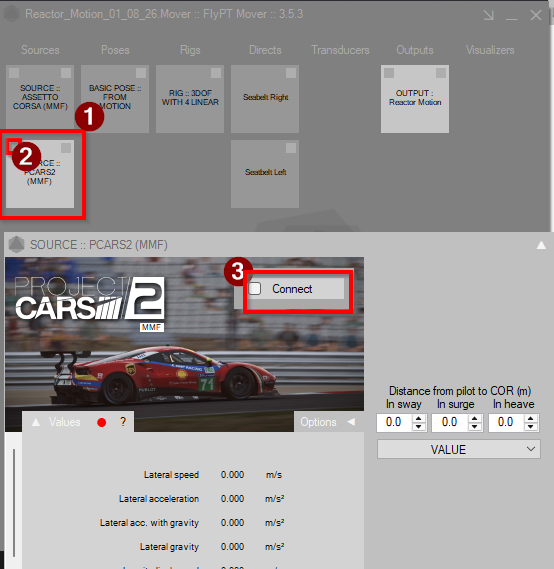
Now start the Game and connect FlyPT to the Game.
You can fine-tune the motion behavior in the Pose settings.
Be careful when adjusting the Range and Intensity values. Increase them gradually and test the result after each change. Settings that are too high can cause the platform to move violently.
flyPT Mover is highly customizable and gives you full control over the motion profile. However, it can also be configured in ways that produce unrealistic or undesirable motion. We recommend making only small adjustments and testing them one step at a time.
For more Possibilities in FlyPT you can start here