
You can download the latest version of Simhub from the following link:
execute and install simhub.
To unlock the Simhub Motion addon you need to buy two licenses:
– Buy general simhub License
– Buy Motion Addon License
Launch the Simhub application on your computer to begin the setup process.
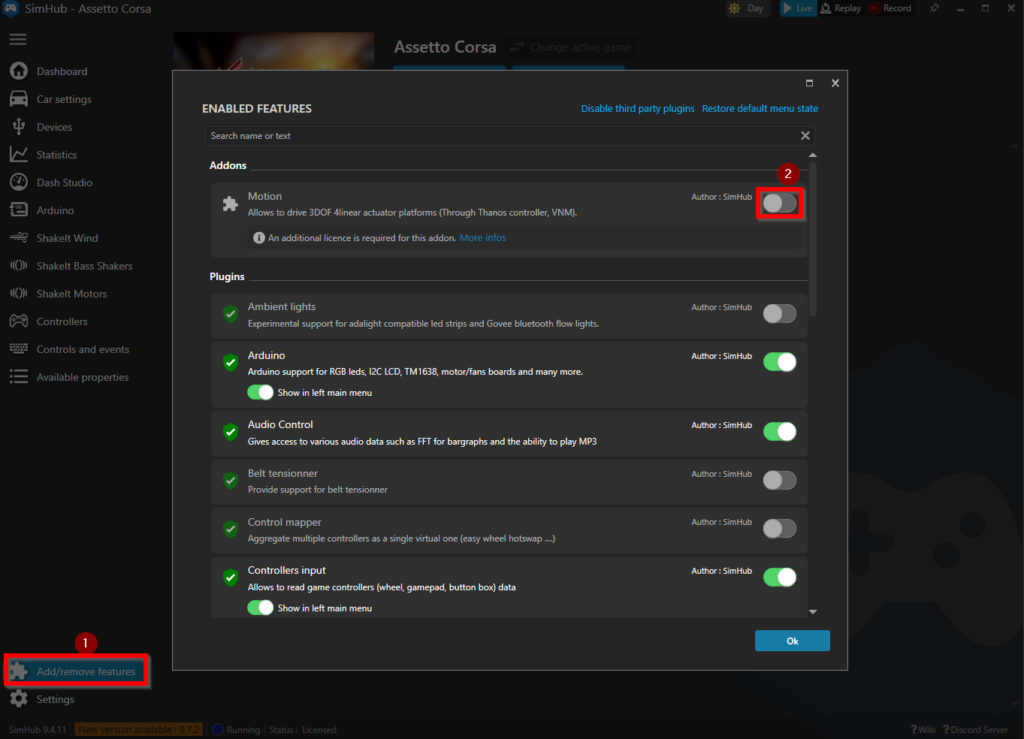
Once Simhub is running, the motion addon need to be enabled:
1.) Click on “Add/remove features”
2.) press the enable Button of the Motion addon
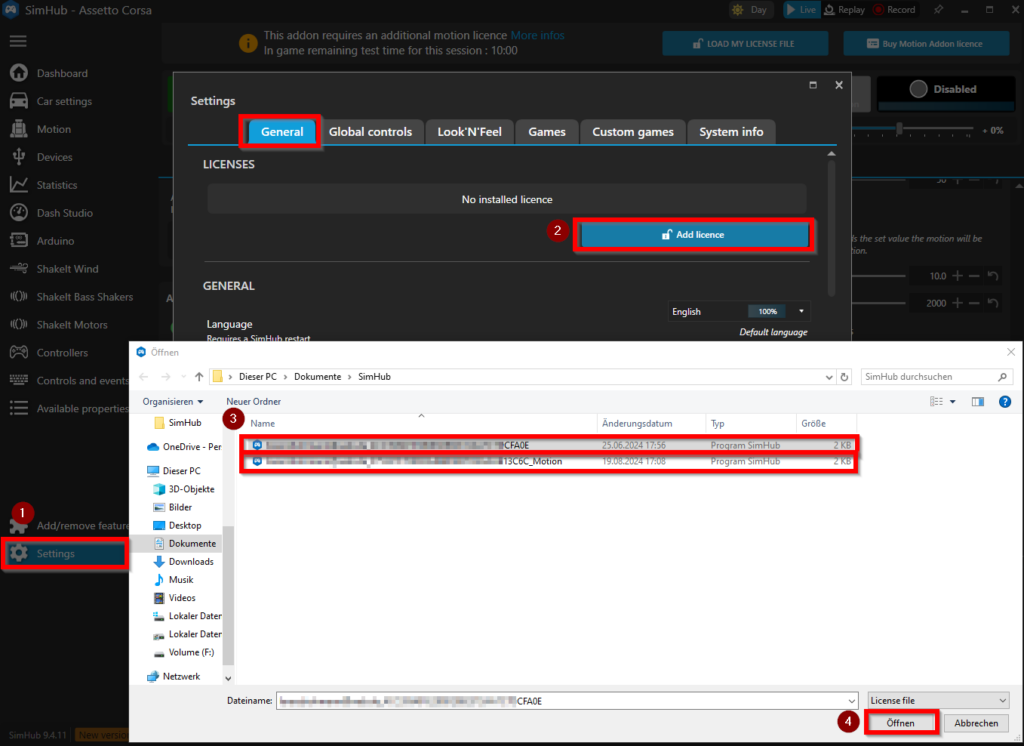
Make sure you bought the two licenses and safed the license files to your computer, provided from simhub by email.
1.) Navigate to “settings->general”
2.) press Add License
3.) choose a license file from your computer (only 1 can be choosen at one time)
4.) open the choosed file
5.) repeat for the other license
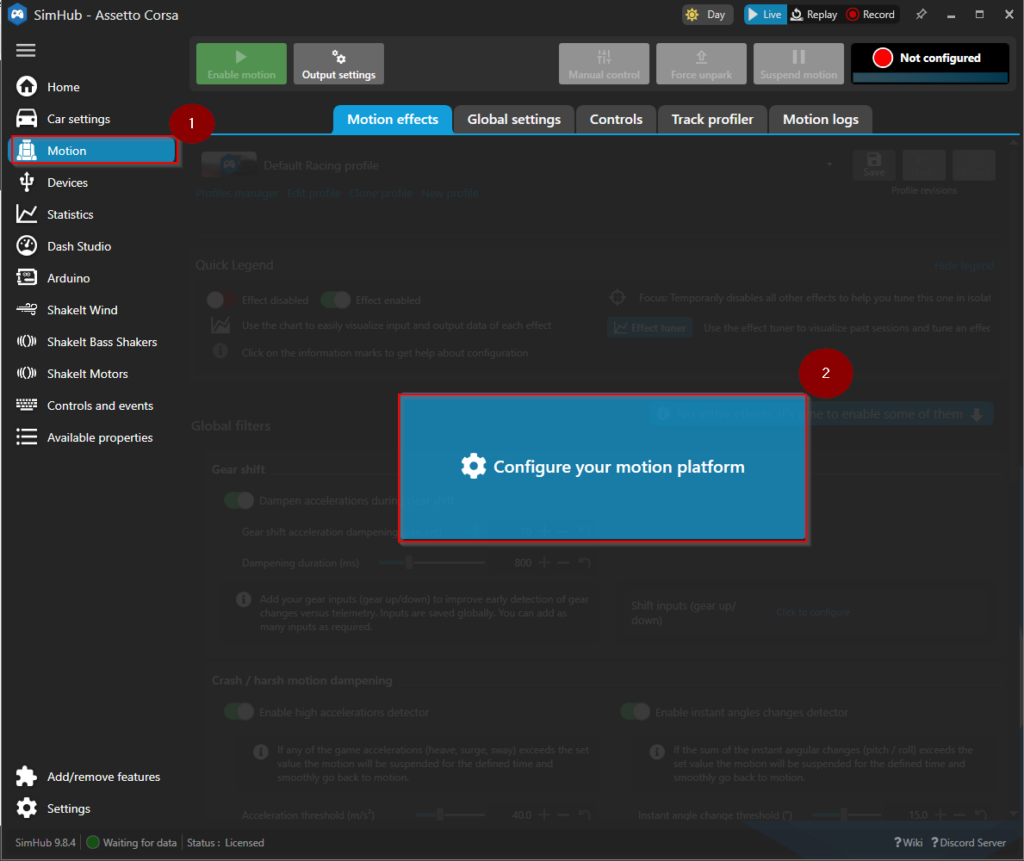
Follow next steps to setup the Motion System
1.) click on Motion
2.) Click on “Configure your motion platform”
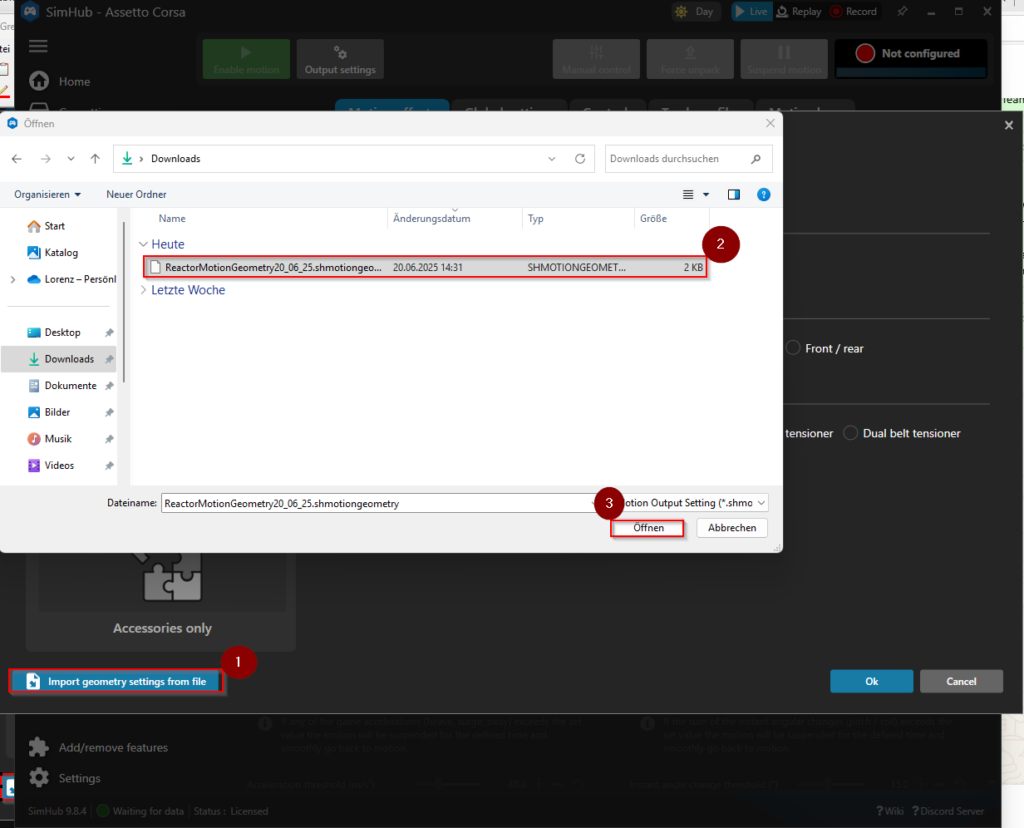
Download pre-configured geometry configuration from SimReactor
1.) click on “Import geometry settings from file”
2.) choose the previous downloaded “*.shmotiongeometry” file in the browser
3.) open the file
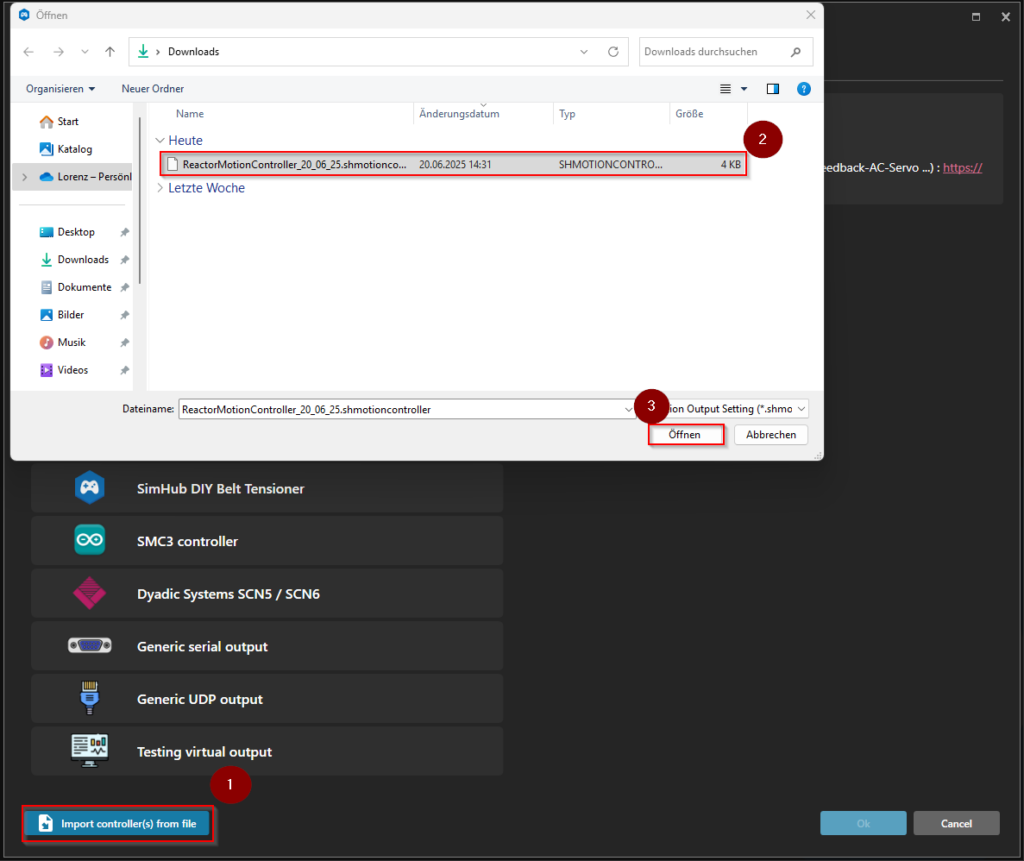
Download pre-configured output controller settings from SimReactor
1.) click on “Import controller(s) from file”
2.) choose the previous downloaded “*.shmotioncontroller” file in the browser
3.) open the file
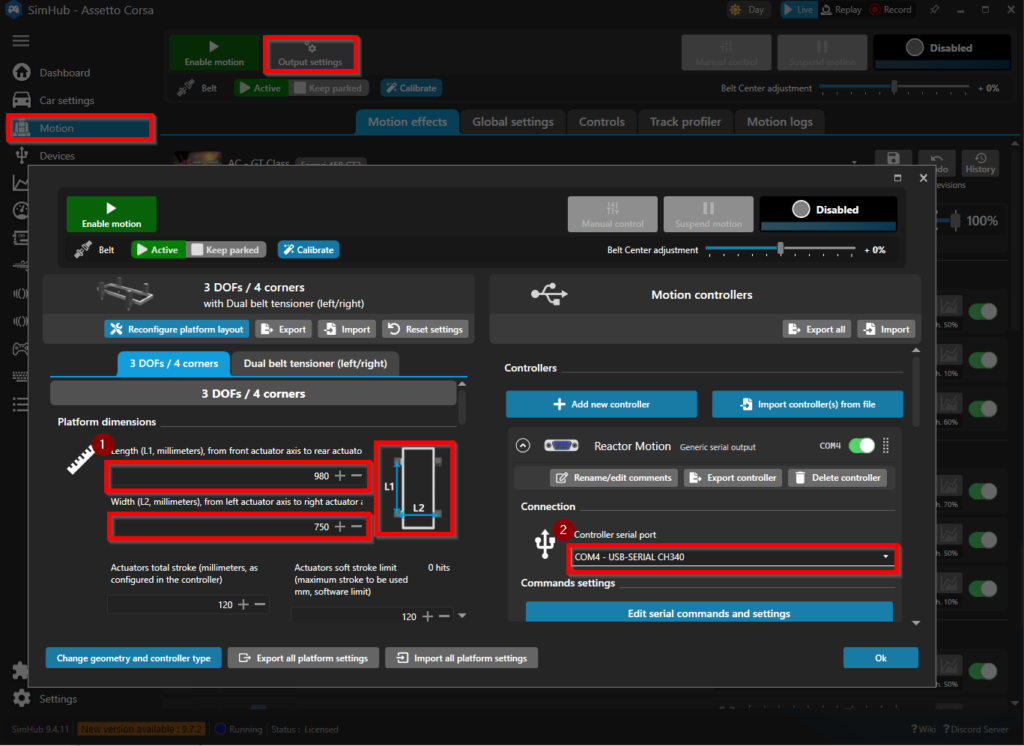
For geting the best experience through various platform sizes, it is important to configure the distances between the actuators which vary between different rigs
1.) Configure the length and width of your actuator distances, as shown in simhub
2.) Navigate to Controllers and choose the COM port the control unit is connected to via USB, in most cases it is shown as “CH340”
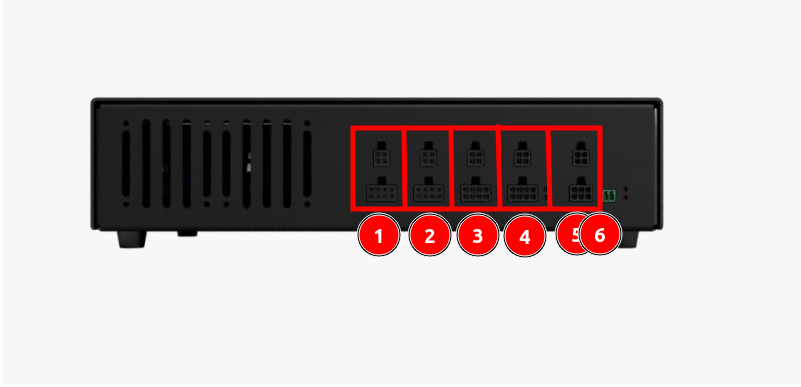
Simhub is asking if all axis are assigned correctly. It is crucial that axis are assigned correctly.
1.) press on Axis assignment
2.) check if pre-configured Axis role is matching with connected actuators to the controller box
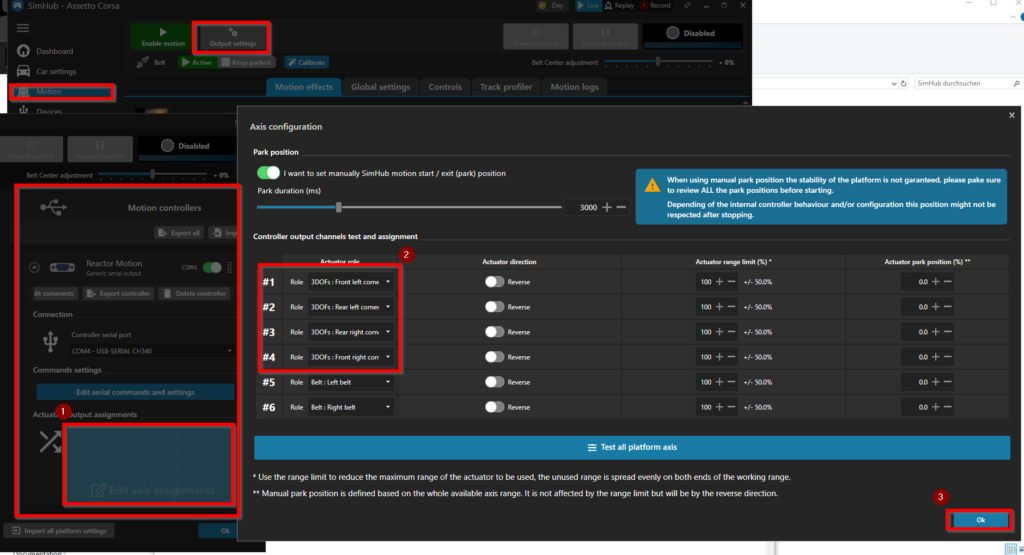
3.) submit the axis assignment
“Test all platform axis” is not recommended, if actuators are mounted to the rig already
If interested, you can download preconfigured game profiles that are compatible with Simreactor from our page (WORK IN PROGRESS)
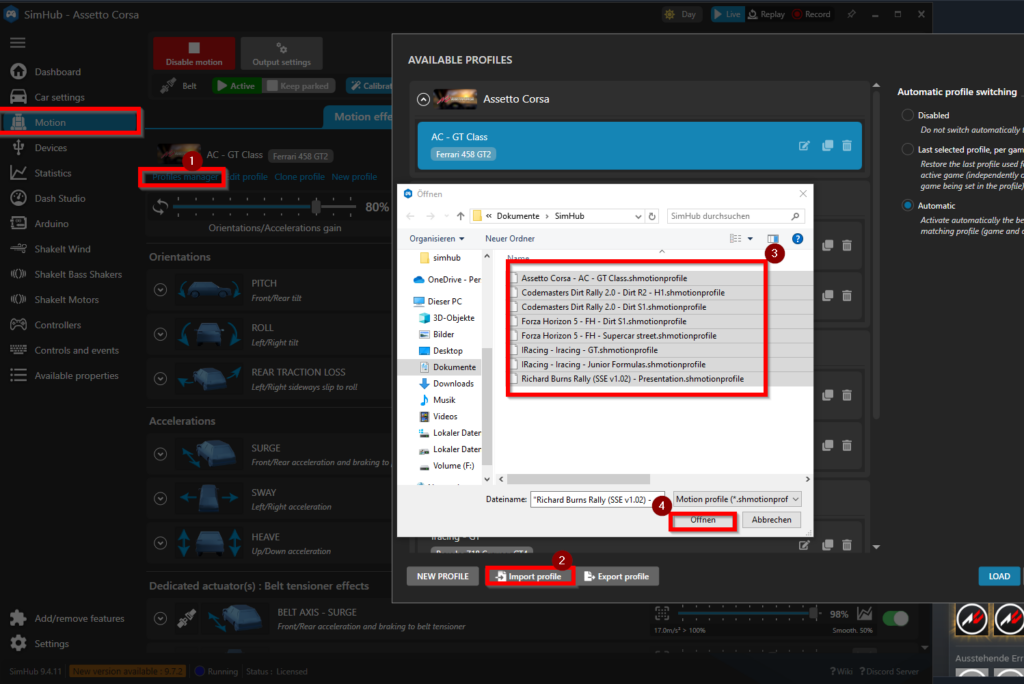
Downloaded Motion Profiles can be added, following these steps:
1.) Press on “Profiles manager” in the “Motion” menu
2.) Press on “Import profile”
3.) You can choose several downloaded Profiles at once in the file browser
4.) press “open” in the file browser
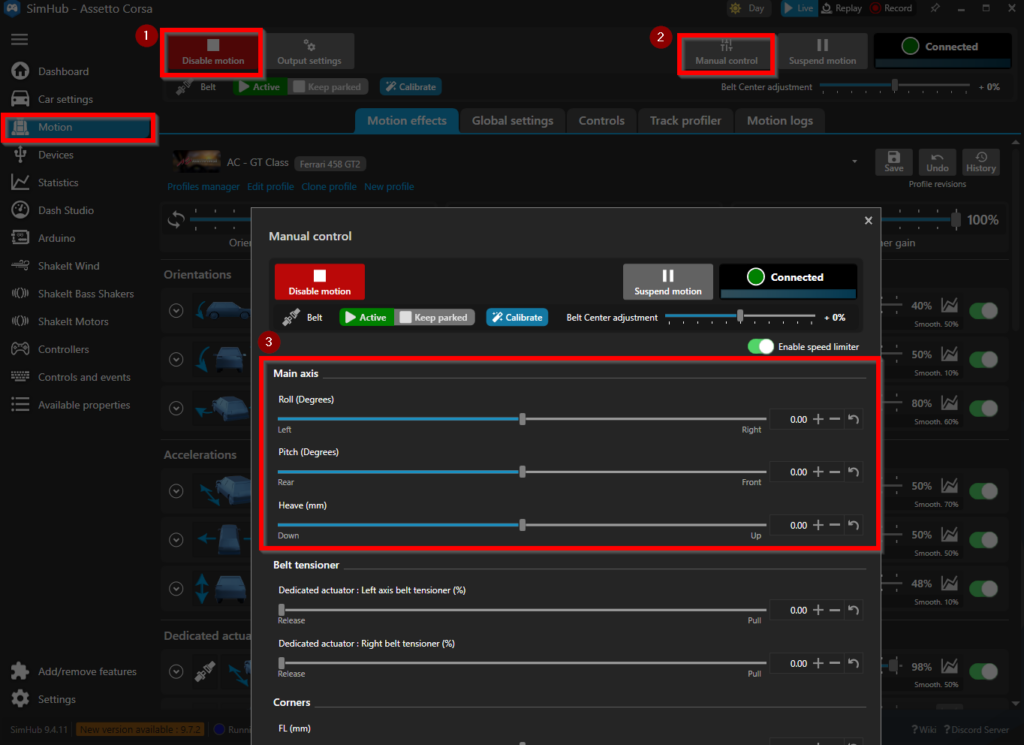
If everything is setup correctly, the platform can be tested
1.) Press the “Enable Motion” button in “Motion” menu
2.) Press on “Manual Control”
3.) slowly increase the sliders of the Main Axis, DONT use the sliders for “Corners” if the actuators are mounted on the rig. Make sure that the rig is moving freely testing all Main Axis (roll, pitch, heave)
Congratulation, your system is now ready for your favourite games. Some games need additional steps to activate the motion output. Follow instructions on the simhub software.